
Apžvalga
Many Arduino users have written and developed code addons for Arduino. With These addons, called “Library”, complex tasks can be done by writing a few lines of code. One of the biggest advantages of Arduino boards over other processor boards is the availability these libraries. With these libraries, you will be able to interface various parts using Arduino boards in a very short time.
Kas yra biblioteka?
A library is a collection of code that is pre-written and stored in a file in order to perform a specific task. One of the main applications of libraries is to simplify interfacing and using sensors, modules and other electronic devices.
Using Arduino Libraries is as easy as importing it at the beginning of your project file with single line of code; But before that you have to install and add it to the Arduino IDE.
There are three methods to do this which we will cover in the rest of this article.
1 būdas: Įdiegti biblioteką naudojantis Bibliotekas vadovu (Manage Library)
Go to the Sketch menu and then click on Manage Library from the Include Library section.
![install library using library manager [1]](https://electropeak.com/learn/wp-content/uploads/2020/09/Arduino-Lib-Manage-lib1.png)
Then search for the name of the desired part. For example, I am going to install the RC522 module library (RFID read and write module).
![install library using library manager [2]](https://electropeak.com/learn/wp-content/uploads/2020/09/Arduino-Lib-Manage-lib2.png)
After selecting the desired library, click on the install button. Hooray! Now you have the latest version of this library on your system.
Pastaba
If you want to install an older version of the library, first select the version you want and then click Install
Once the installation is complete, the desired library will be added to the list of libraries.
![install library using library manager [3]](https://electropeak.com/learn/wp-content/uploads/2020/09/Arduino-Lib-Manage-lib3.png)
2 būdas: Įdiegti biblioteką naudojant ZIP failą
If you have a zip file of a library with a .ZIP extension, navigate to Sketch > Include Library > Add ZIP Library.
![install Arduino library using zip file [1]](https://electropeak.com/learn/wp-content/uploads/2020/09/Arduino-Lib-Zip-lib1.png)
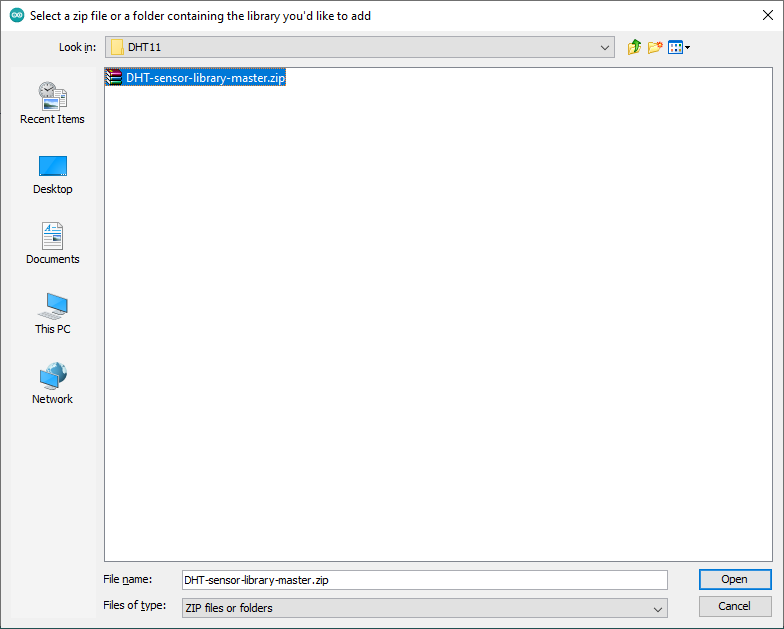
Then select ZIP file of the library and click Open.
To make sure the library is installed properly, check the list of your libraries.
![install Arduino library using zip file [2]](https://electropeak.com/learn/wp-content/uploads/2020/09/Arduino-Lib-Zip-lib3-1.jpg)
3 būdas: Įdiegti biblioteką rankiniu būdu
First, from the File menu, select Preferences and find the storage location of the libraries from the Sketchbook location box.
![install Arduino library using zip file [3]](https://electropeak.com/learn/wp-content/uploads/2020/09/Arduino-Lib-Manually-lib1.jpg)
Dabar atidarykite šią vietą.
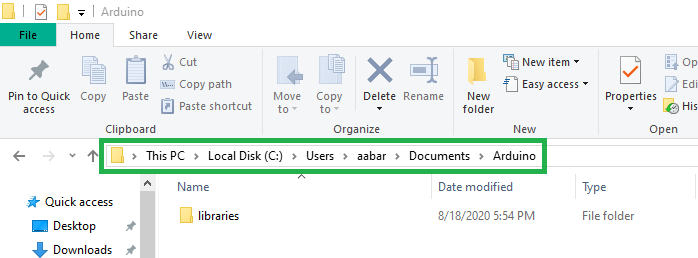
Copy the desired library folder to the libraries folder. Note that the library file should not be compressed.
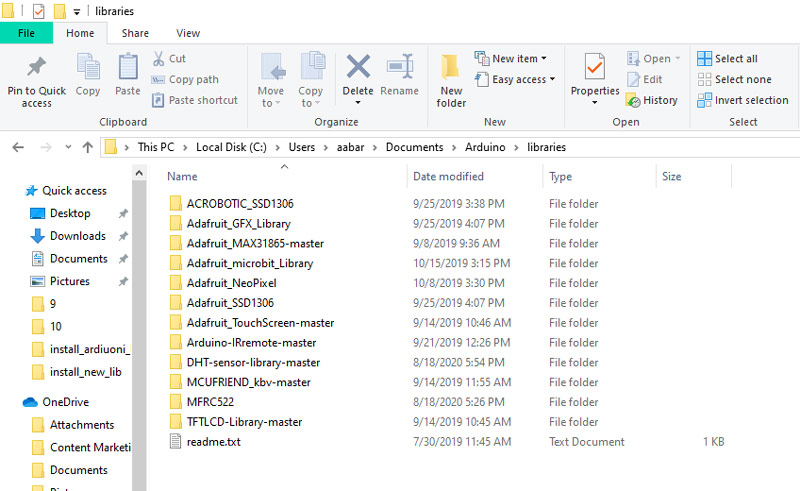
To make sure the library is installed properly, check the list of libraries in Arduino IDE.
